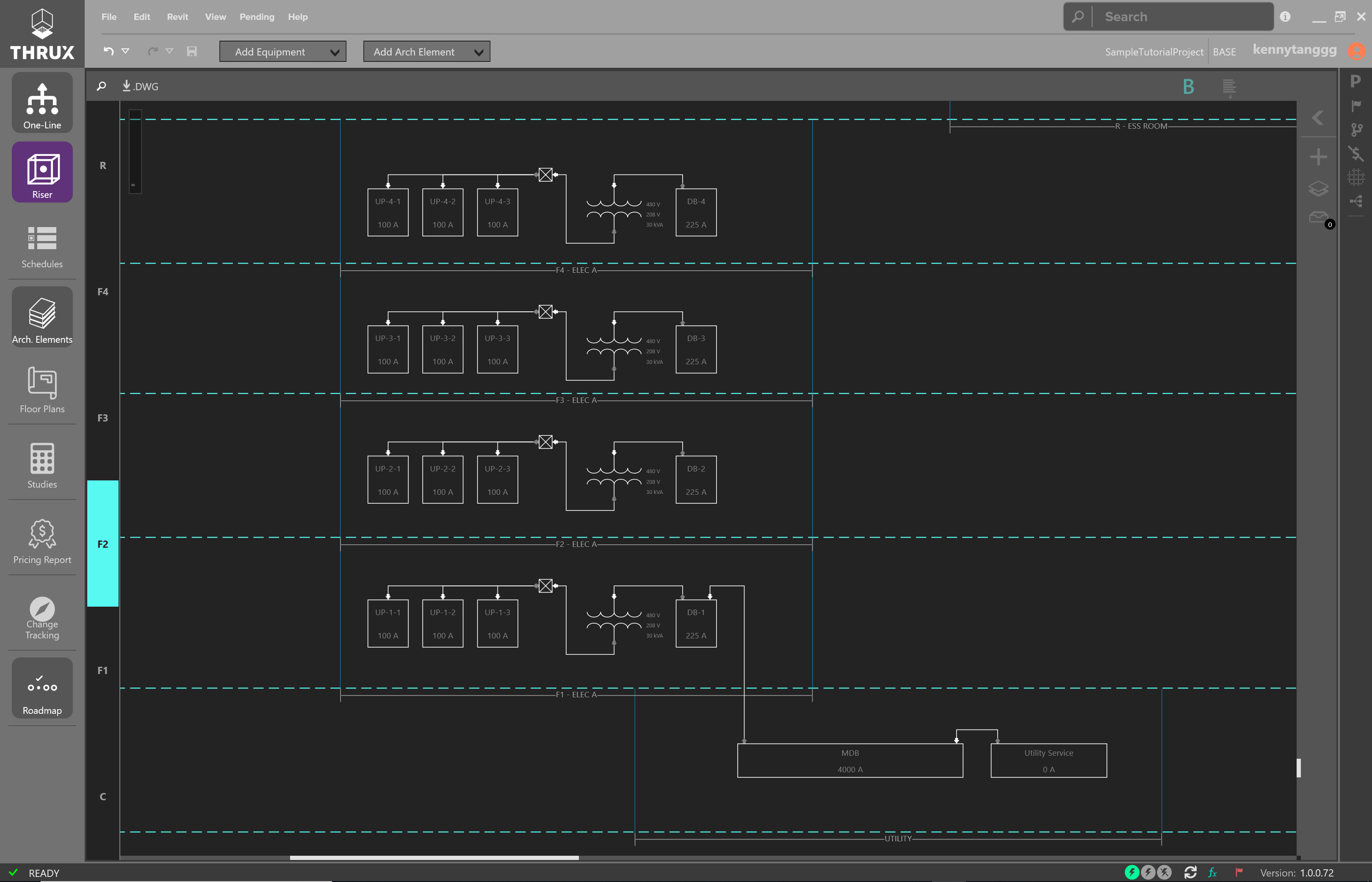
The Riser Workspace is an elevational representation of the distribution system. It is used to depict wiring routes as they disperse through a vertically scaling project.
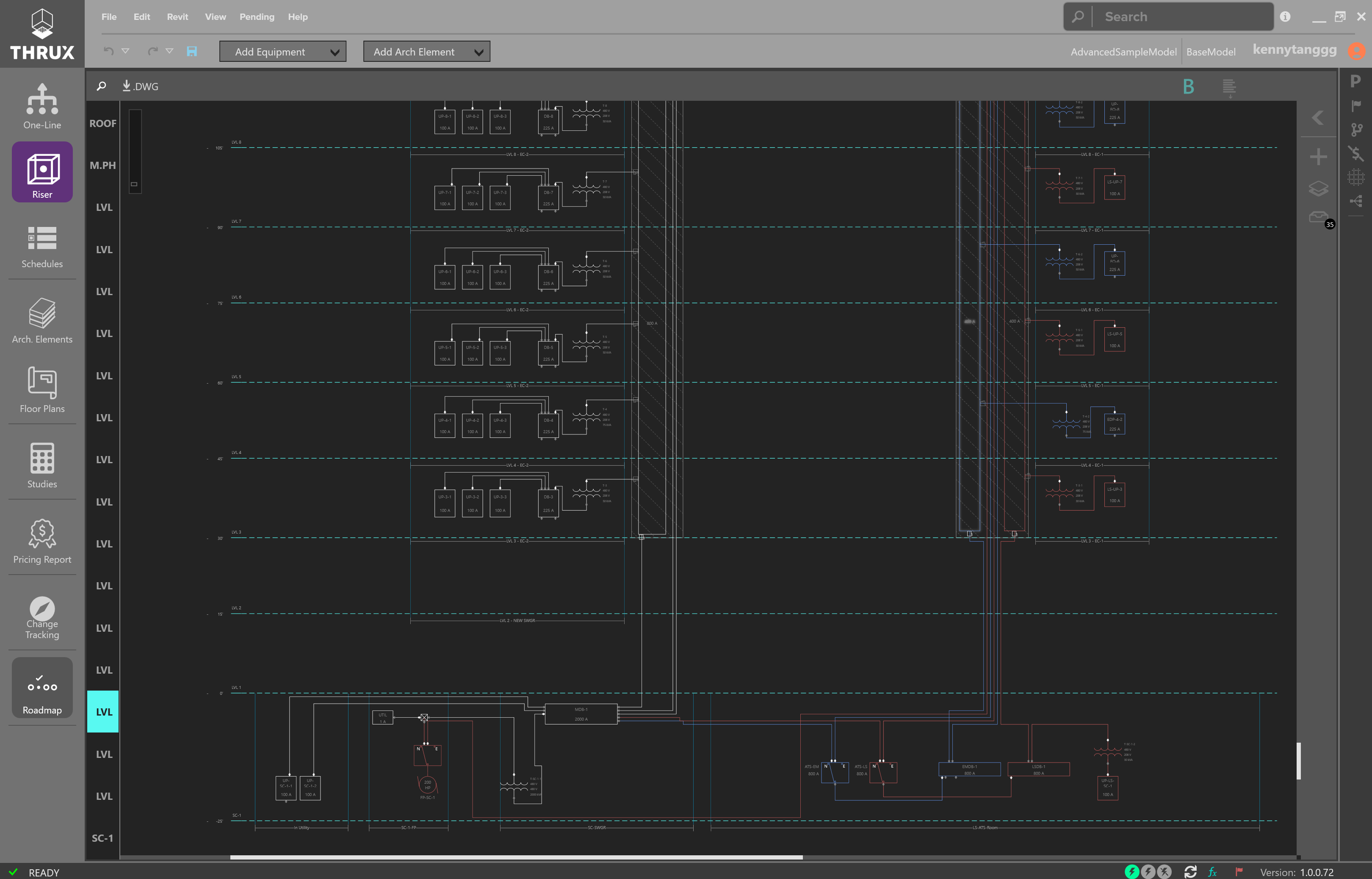
Example Riser Diagram
Note that the interactions between the Riser, One-Line, and Schedules are similar.
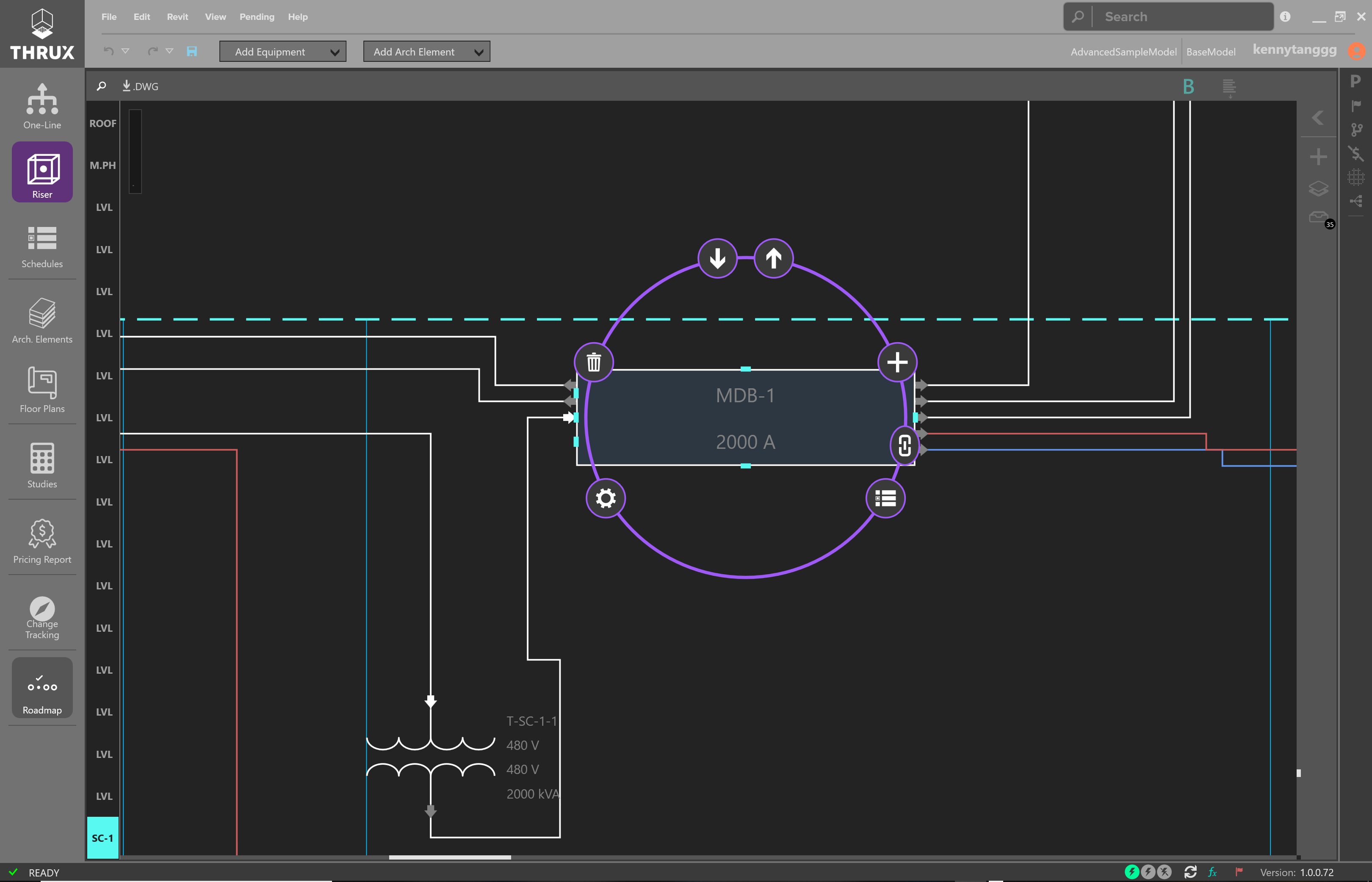
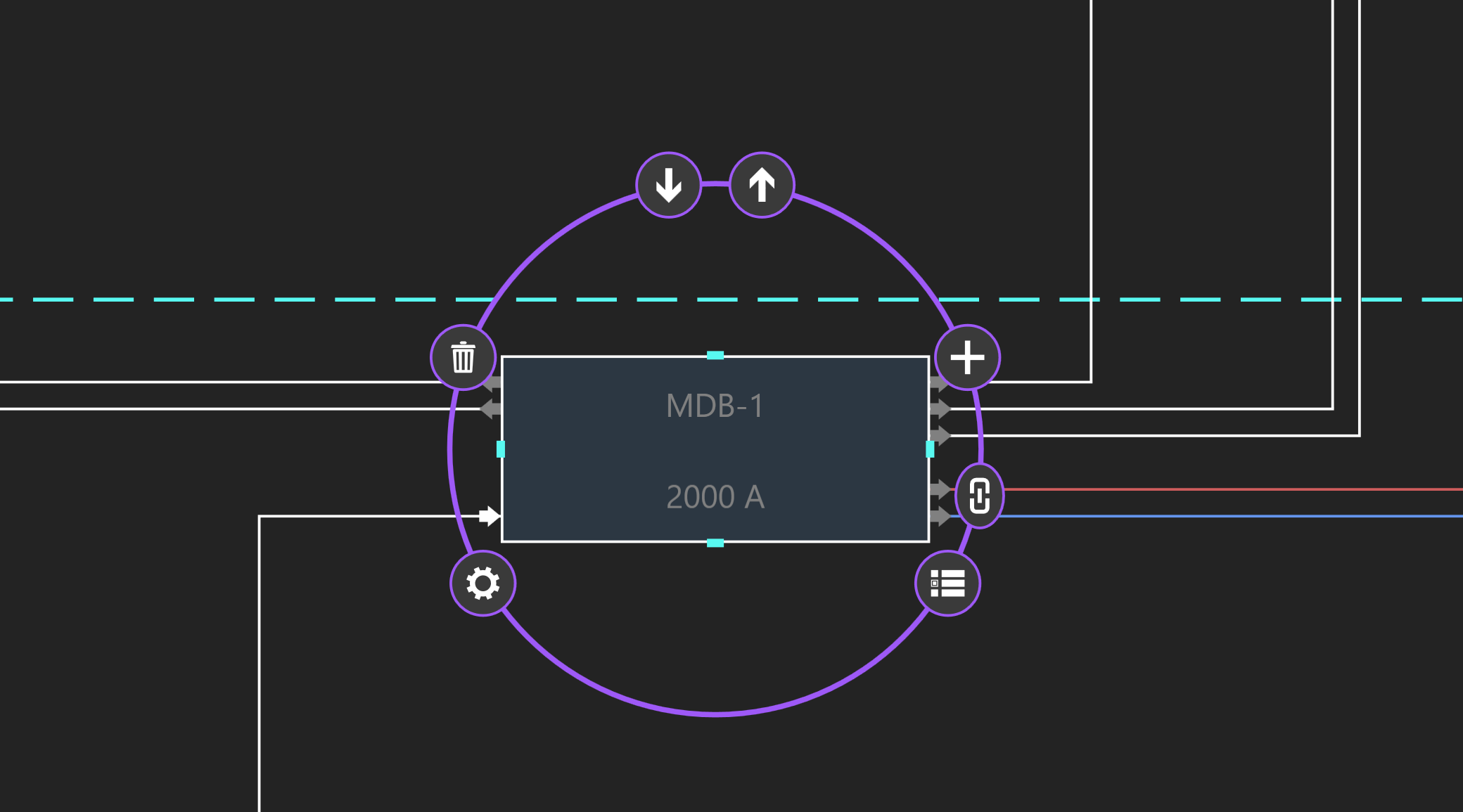
Selection Dial
Navigation Overview
Floor Navigator
On the left, is a Floor navigator. It will highlight and navigate to the selected Floor.

Cycle through Floors using the Floor Navigator
Floors are denoted by the dashed regions, while Rooms are denoted by the solid regions.

Floors vs. Rooms
Floor Elevations
In the Riser, the elevations of each Floor are annotations which are not connected to the visual spacing or distance between floors.
In other words, moving the Floor will not change the elevation of the Floor.
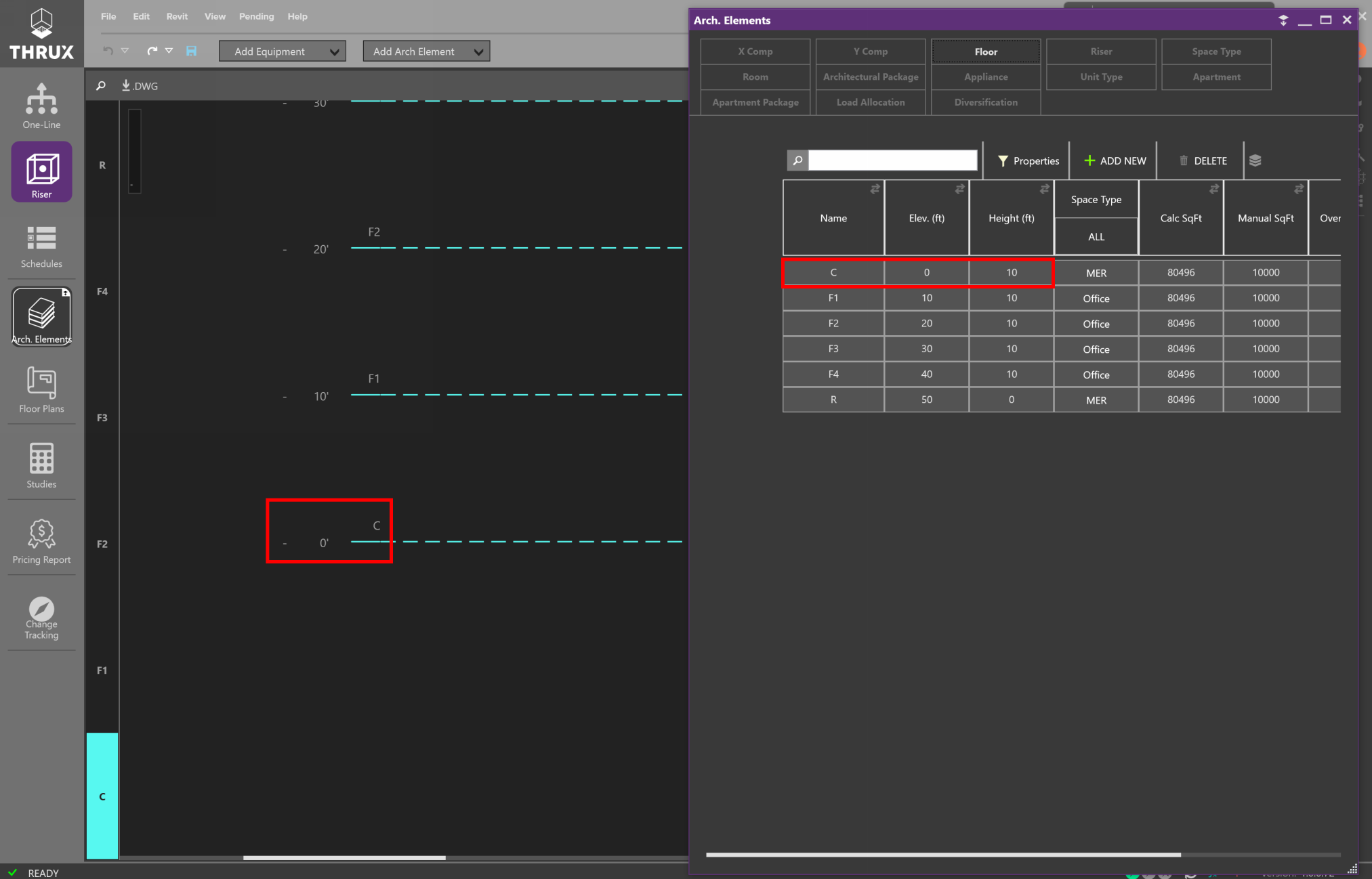
Viewing the Floor Elevation in the Riser and the Arch. Elements
Moving the Floor will not affect the elevation.
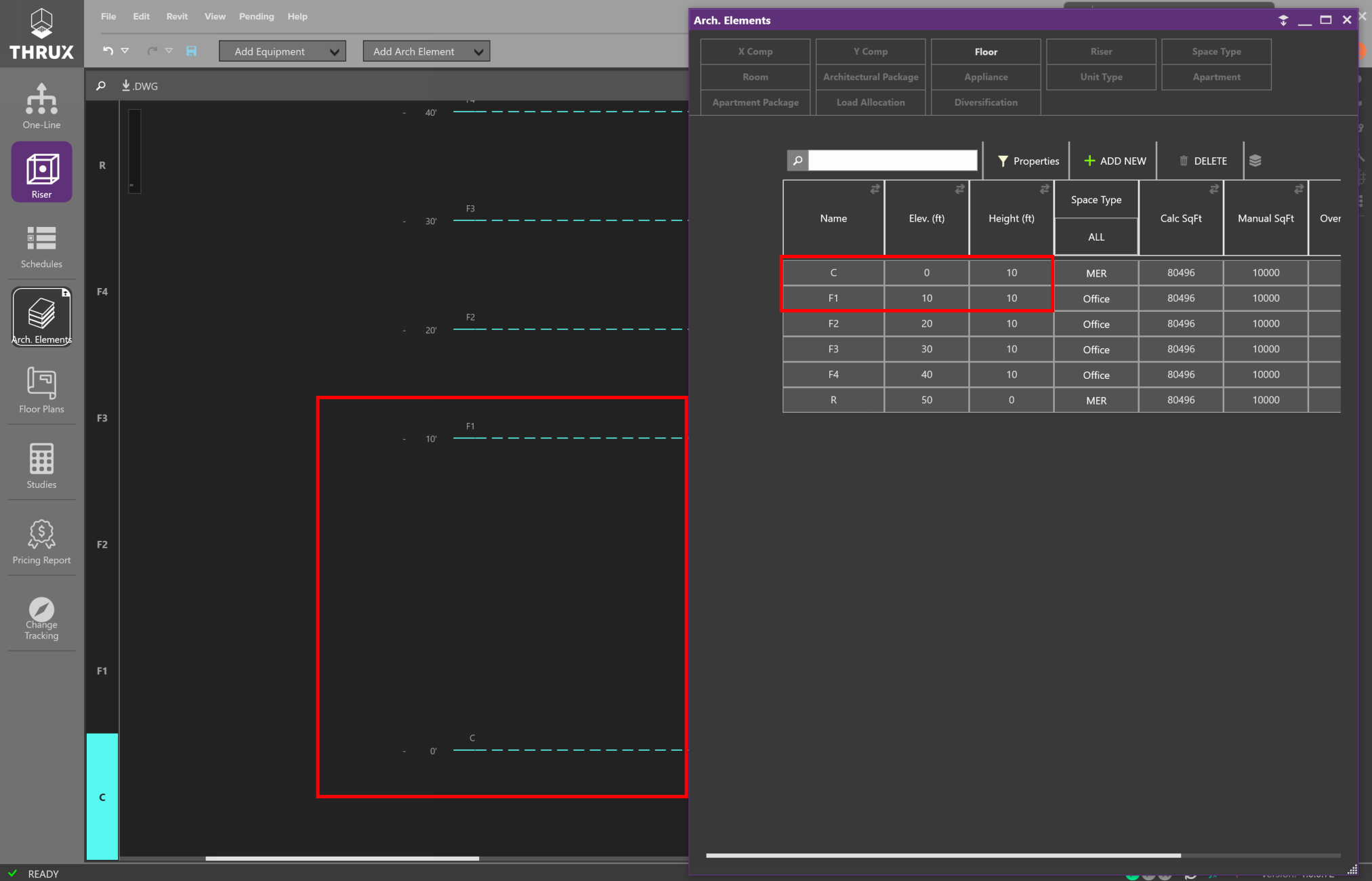
Changing the visual spacing between Floors
Changing the Floor annotation will affect the lengths of feeders and voltage drop calculations.
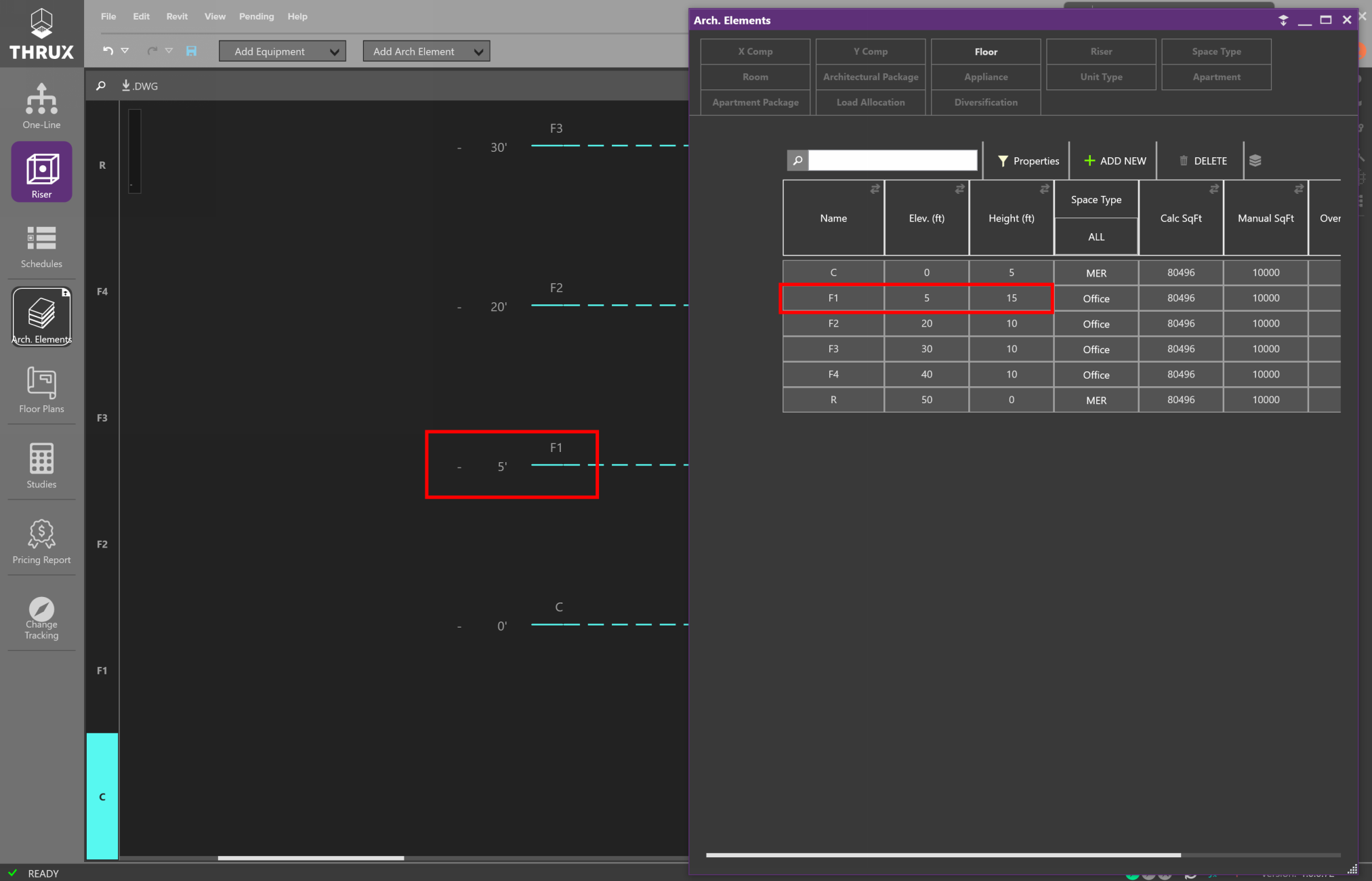
The Riser Floor annotations are linked to the Arch. Elements
Riser Toolbox
On the right is the Riser Toolbox, which allows you to search for Equipment, control layers of the circuits between Equipment, and view Hidden Elements.

Riser Toolbox
Click on the Filters button (layers icon) to open the Layers filter.
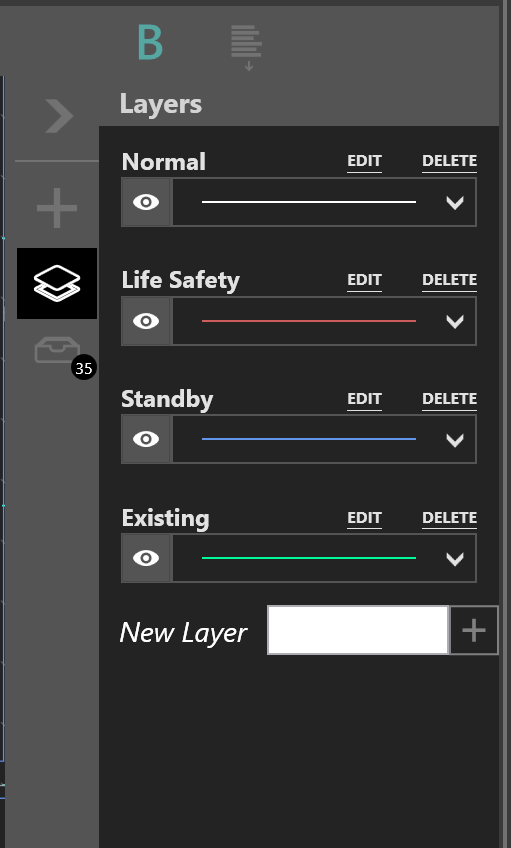
Filters allow greater flexibility with visibility
Right-click on a connection to change the layer of an Equipment and note the display.
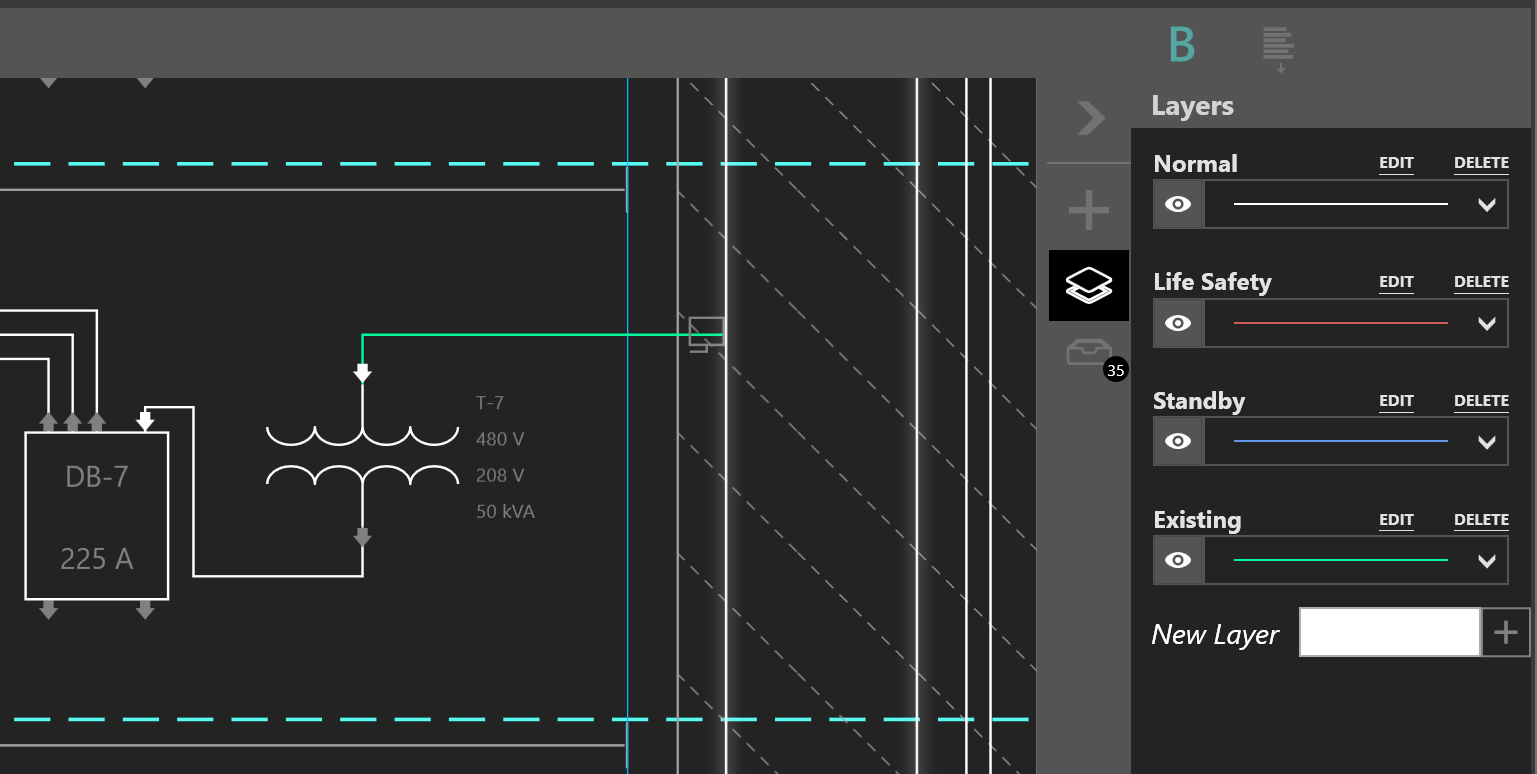
Identifying a circuit as existing
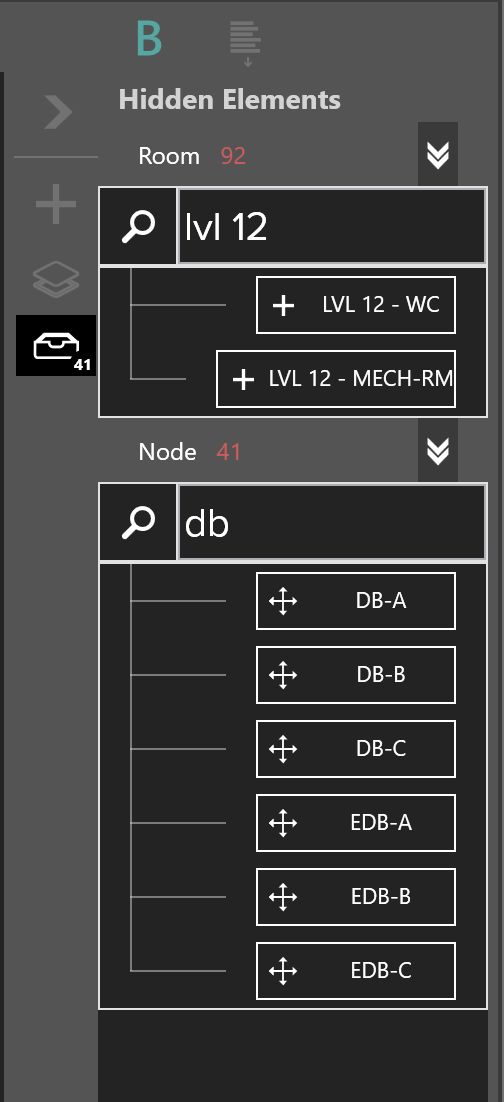
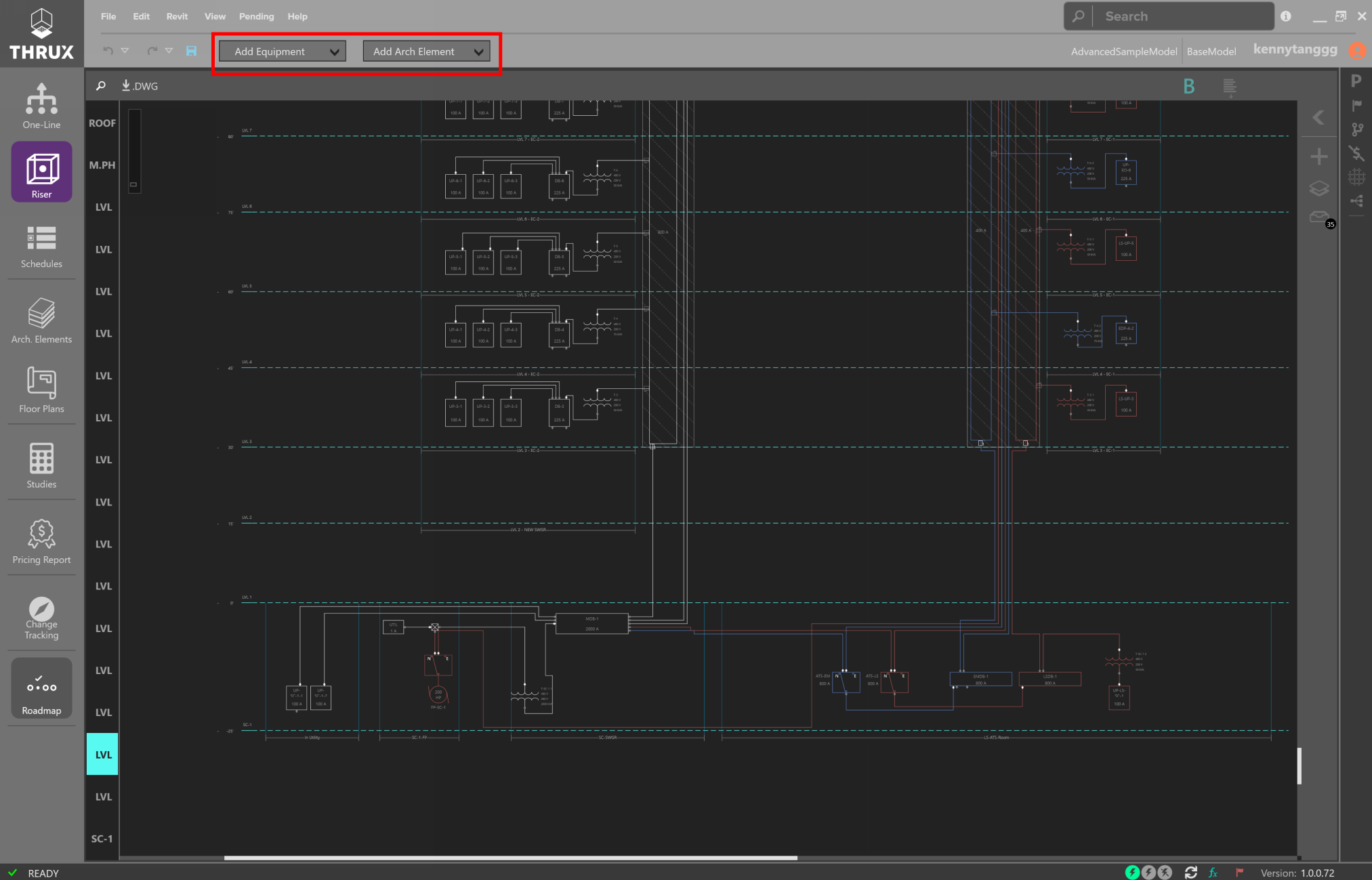
Add Architectural Elements
To add Floors, Rooms, Architectural Elements, or electrical Equipment, use the toolbox at the top.
Adding Elements
Drag and drop elements from the toolbox to the Workspace to place elements.
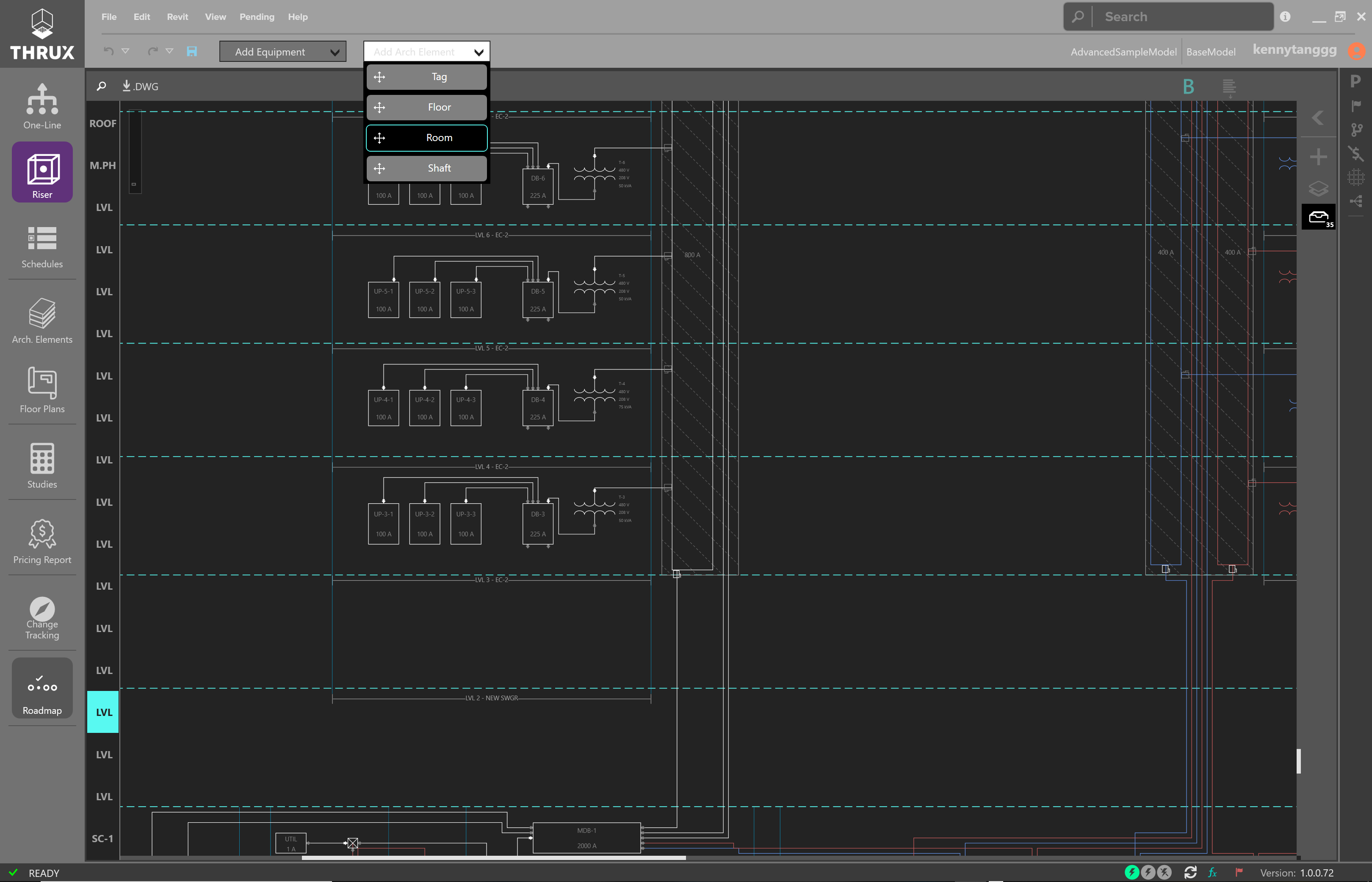
Adding Architectural Elements
Add Electrical Equipment
To place Equipment, drag and drop elements from the toolbox into the Workspace.

Adding Electrical Equipment
To place an Equipment in a Room, drag the Equipment into the Room region.
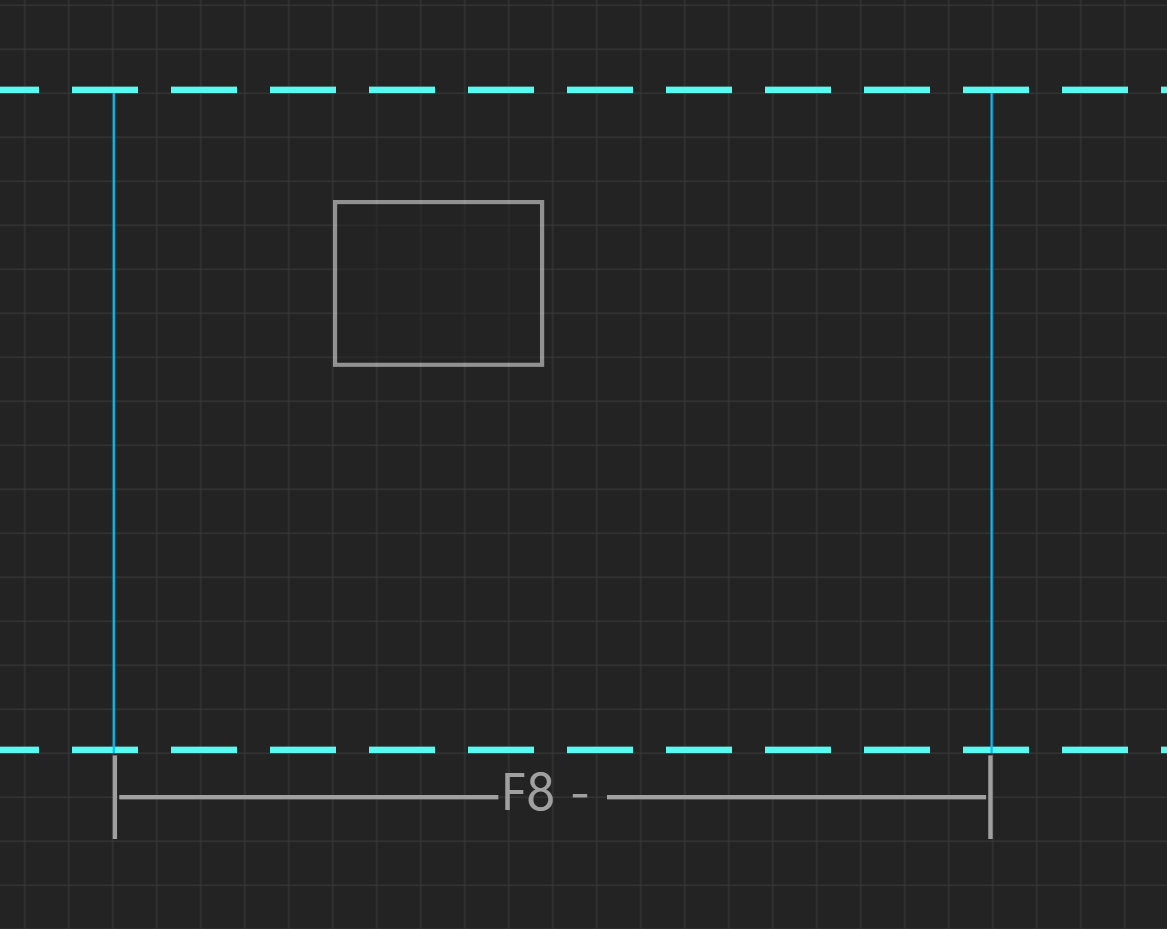
Equipment placed in a Room
Connecting Equipment
There are three different types of connections between Equipment: Outbound, Tie, and Infed. These are also known as Load, Tie, and Source, respectively.
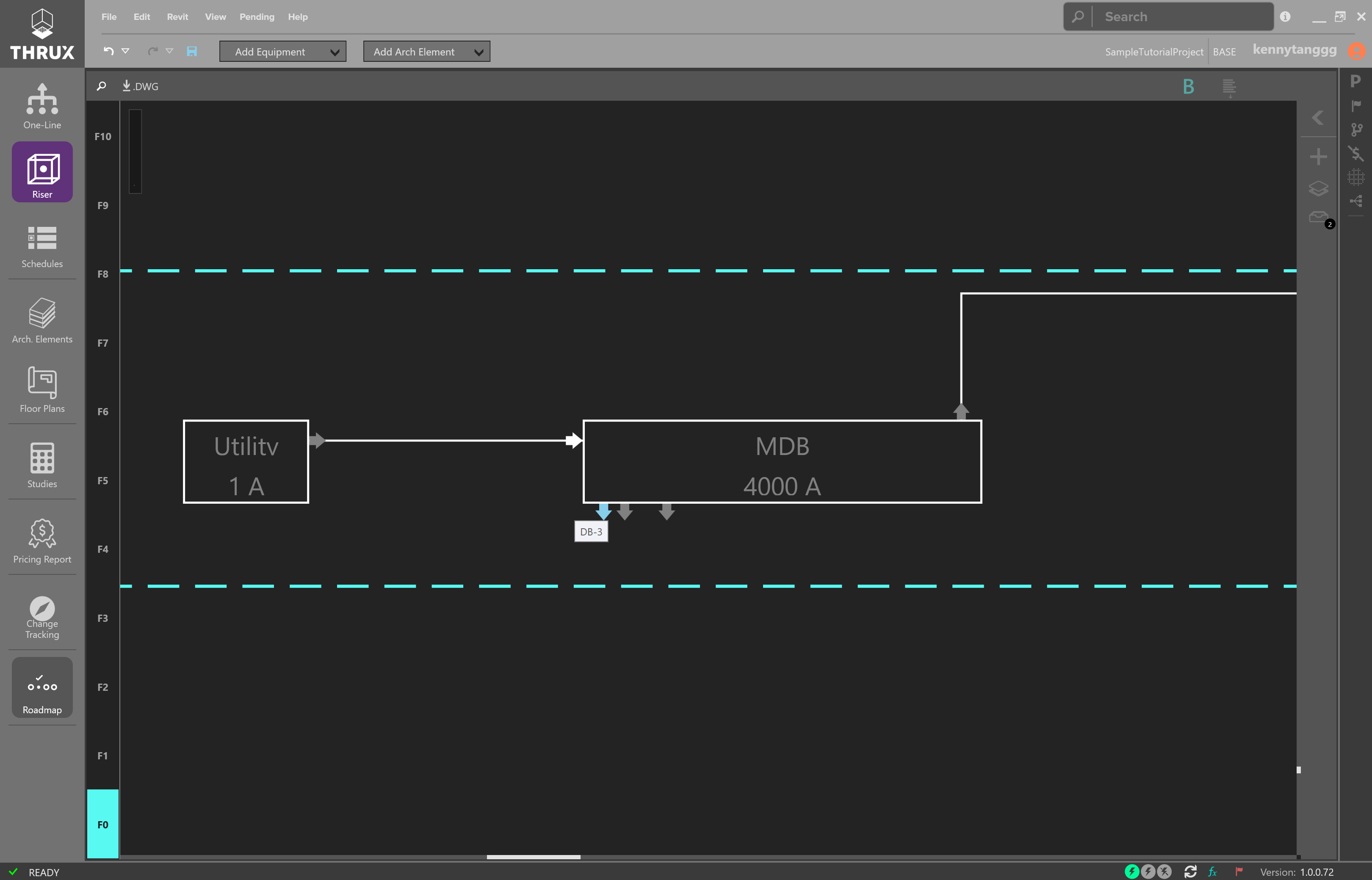
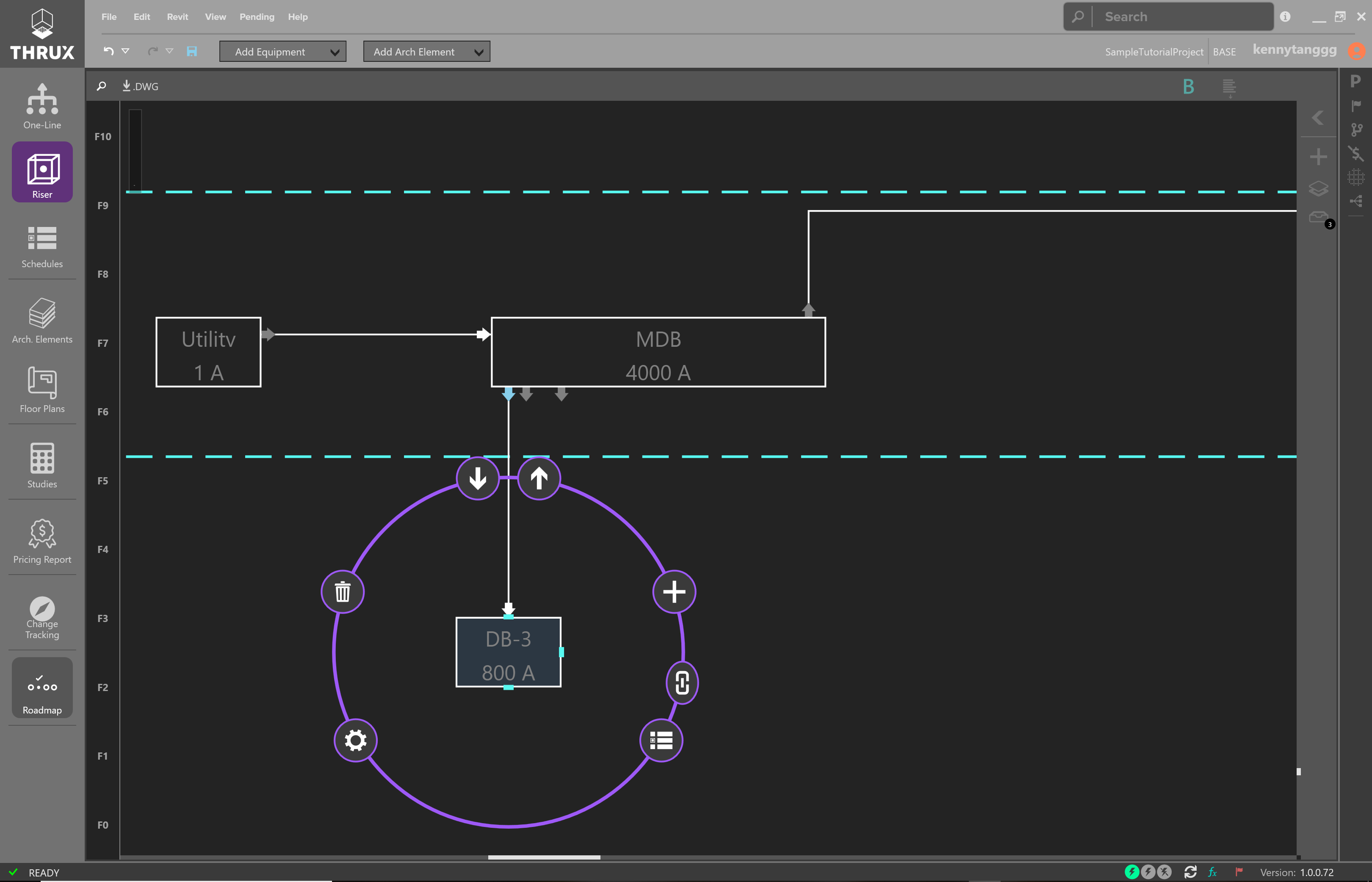
To create a connection between Equipment, select the Equipment. Then choose the type of connection. An outbound arrow will create an Outbound connection, indicating you are drawing a connection to a load. An inward facing arrow will create an Infed connection, indicating that you are drawing a connection to a source.
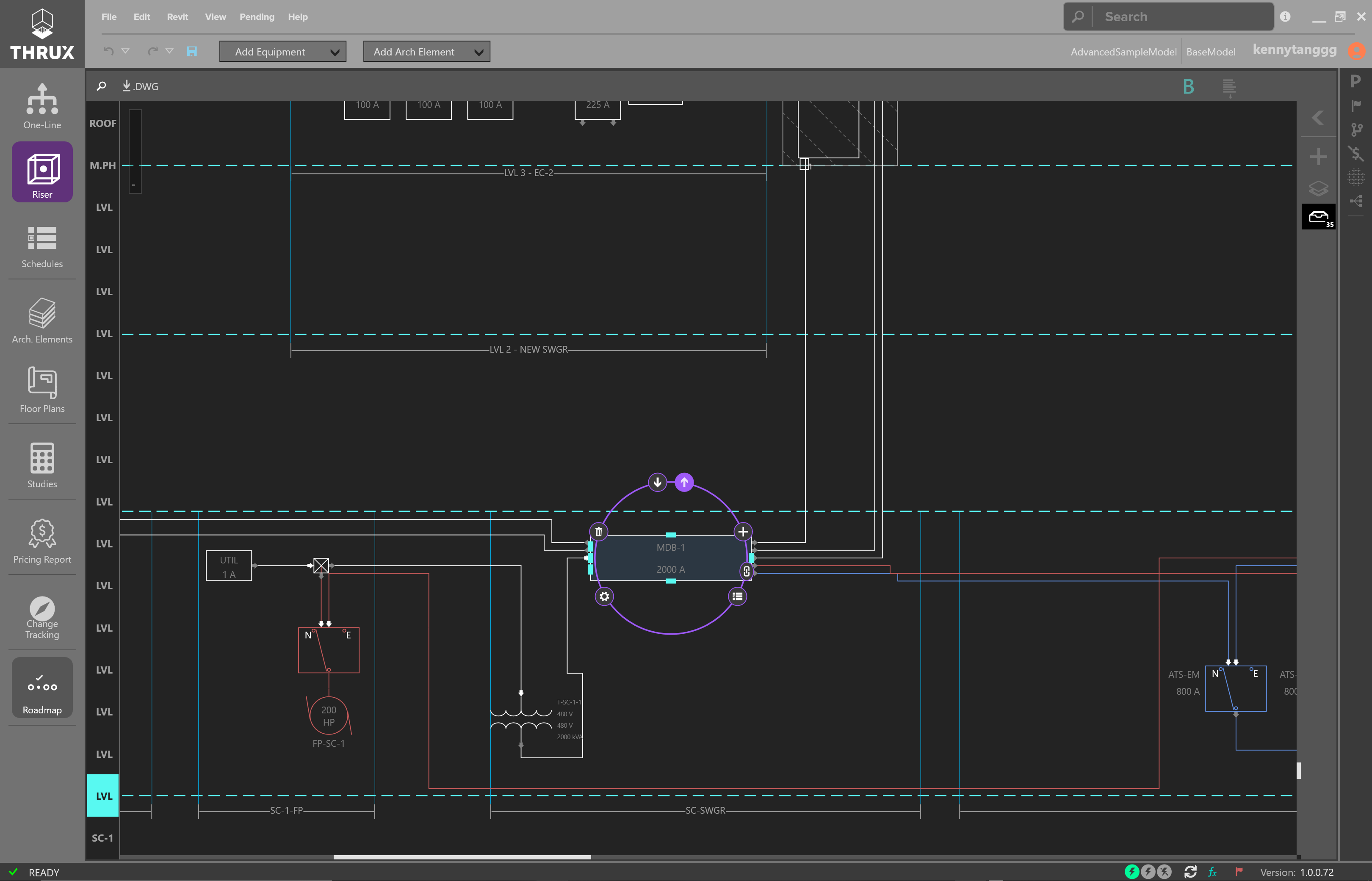
Using the Selection Dial to create connections
Draw out the connection using the mouse and use Enter to create an Equipment.
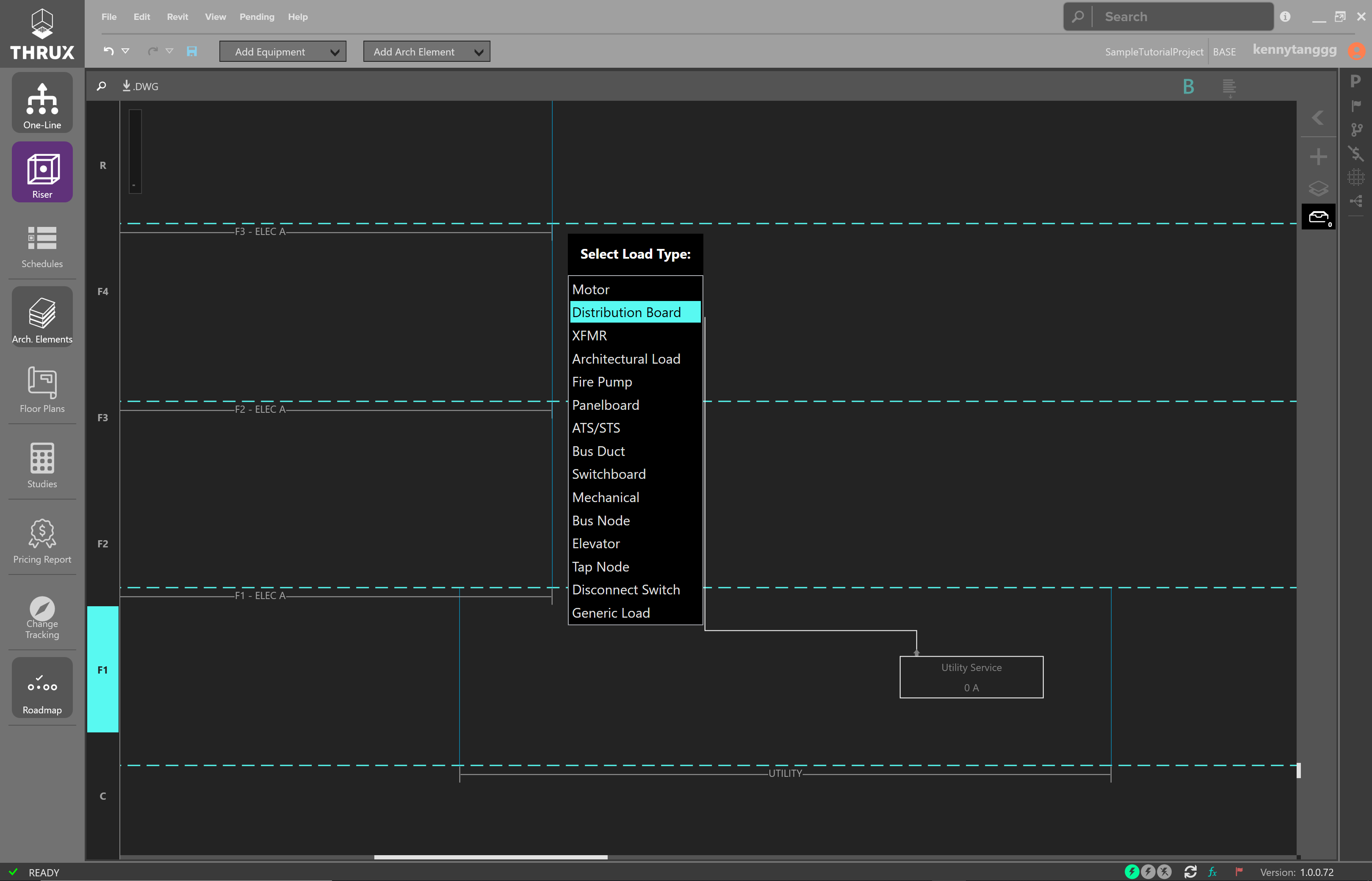
Use Enter to place Equipment
Resetting Connections
To quickly redraw a connection between equipment, use the reset command. Right-click on the circuit. Then choose Reset.
Copying Equipment
Select the Equipment and use CTRL+C to copy.
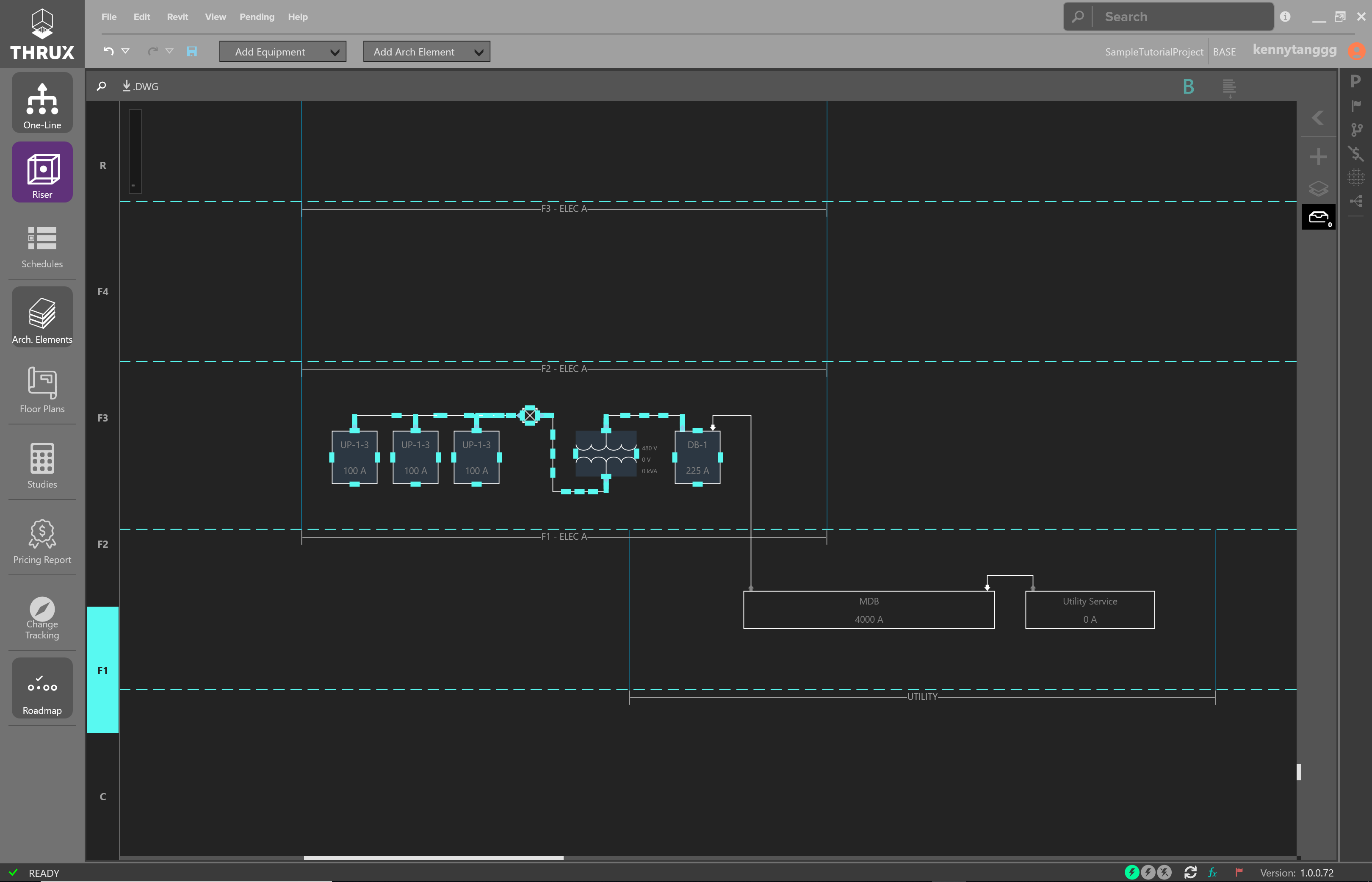
Copying multiple pieces of Equipment
Use CTRL+V to paste.
Pasting multiple pieces of Equipment
Moving Equipment
It is possible to move Equipment by an individual or a group basis.
Select a single Equipment or select multiple by using CTRL+Click, or drag and drop a selection box.
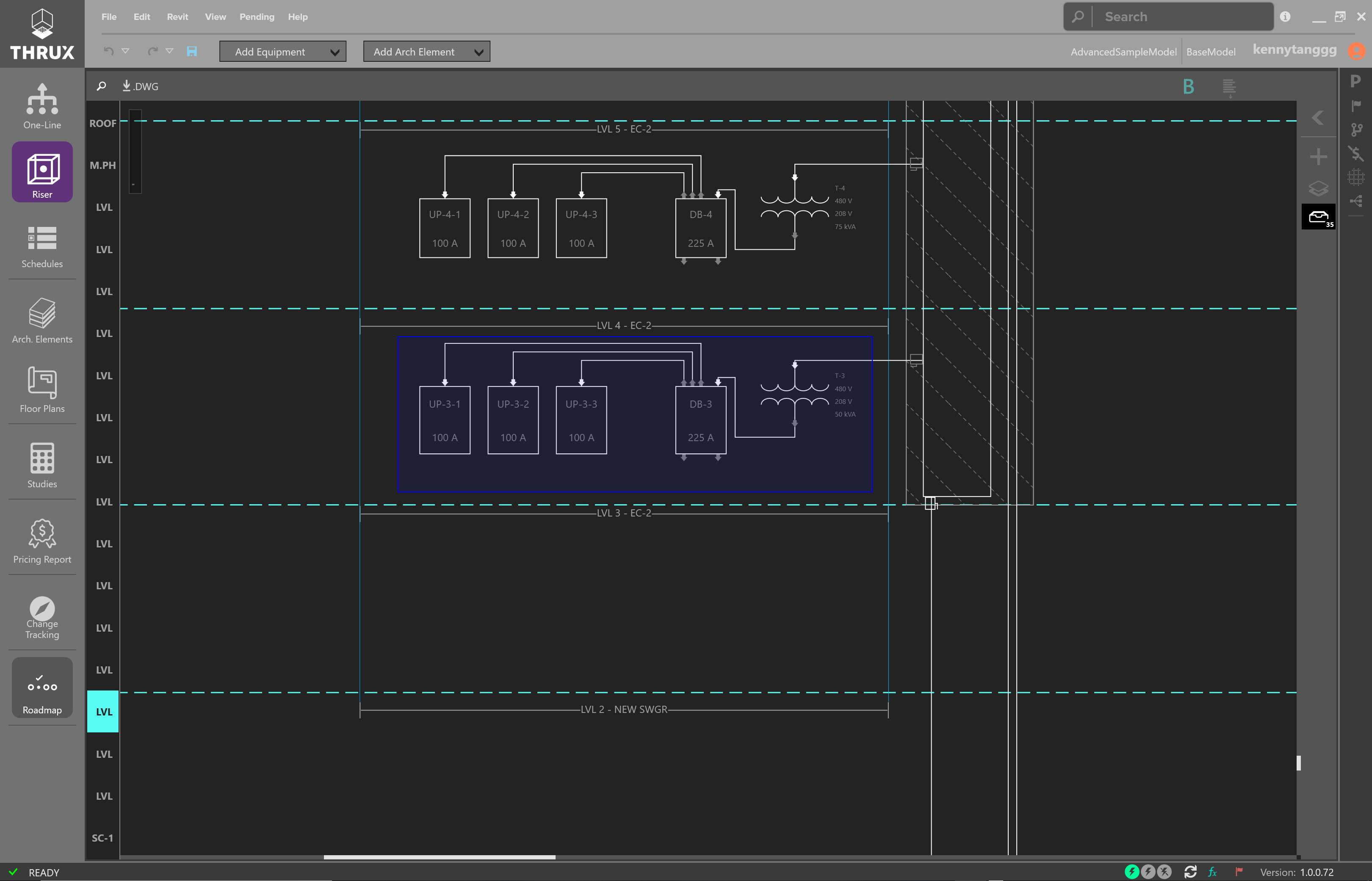
Selecting multiple pieces of Equipment
Then click and drag to move Equipment.
Resizing Equipment
To resize equipment, select on a piece of equipment. Use the grips to change the size.
Resizing an Equipment
Navigate
Similarly to the One-Line and the Schedules, it is possible to jump between Workspaces.
A piece of Equipment may be found on multiple Workspaces.
Selecting an Equipment and using the Navigate button to jump to another Workspace.
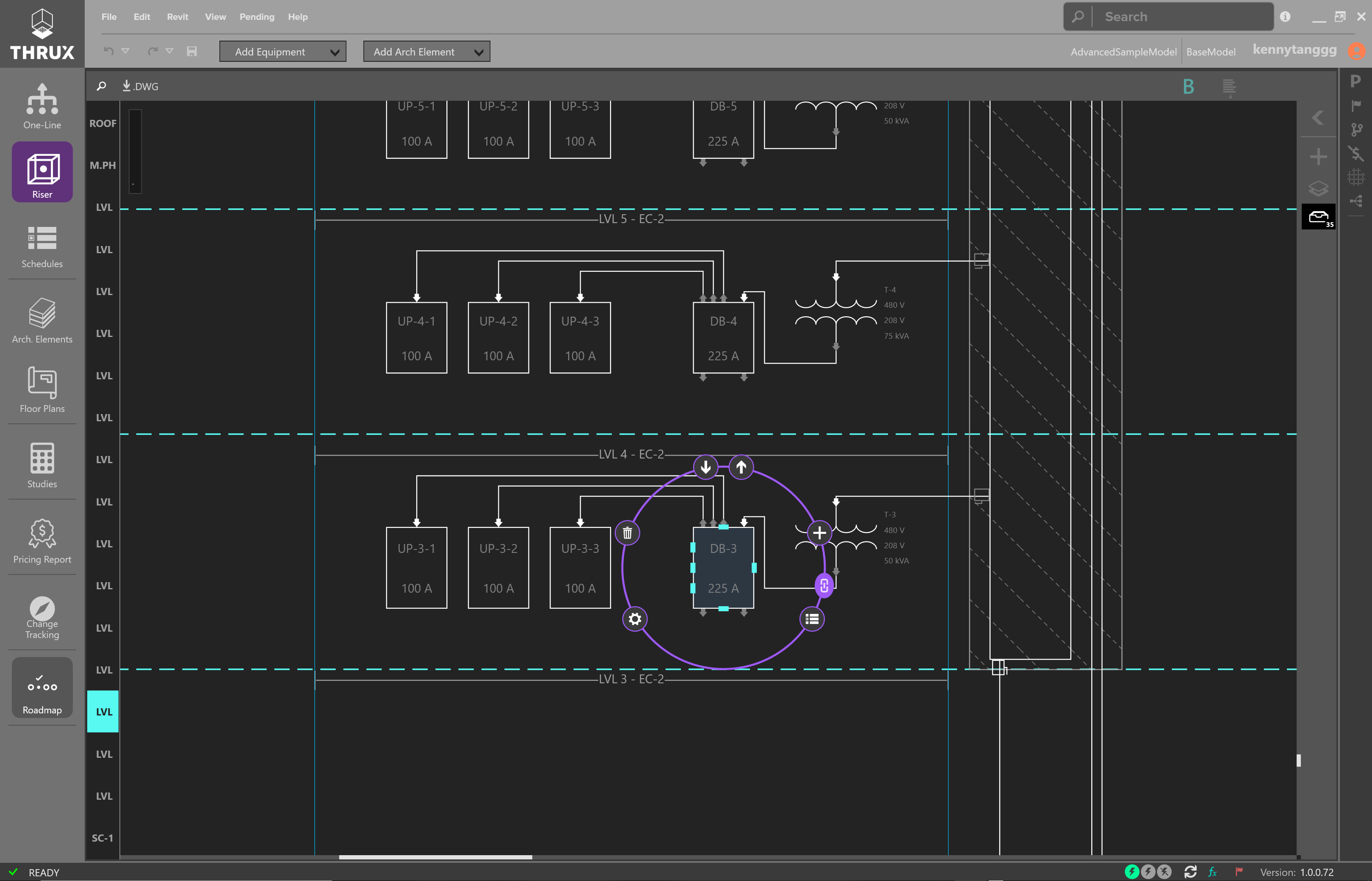
Using the Navigate button
Choose the Workspace to jump to.
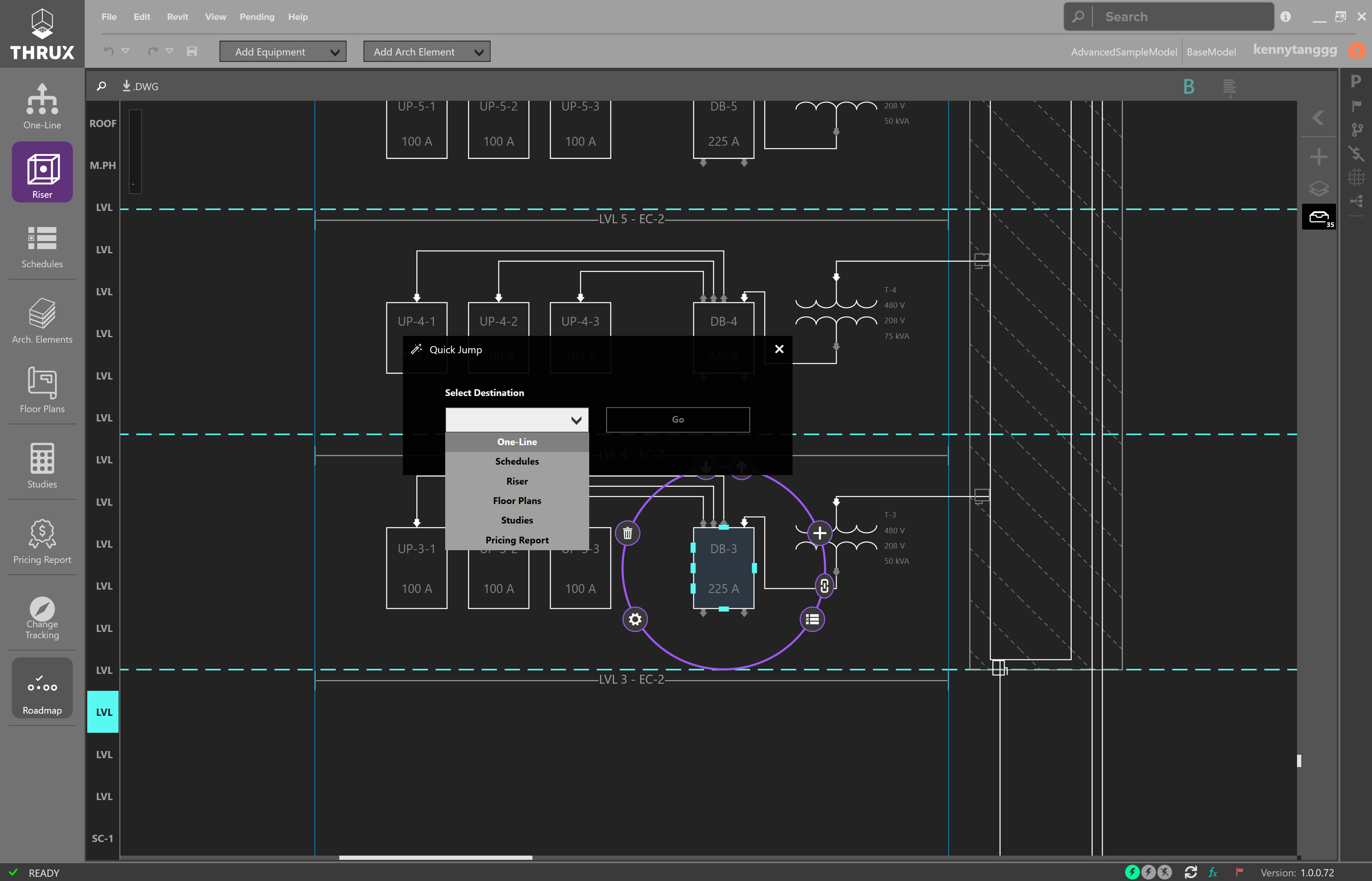
An Equipment can be Found on Multiple Workspaces
Navigating to the One-Line will expand the network and select the node.
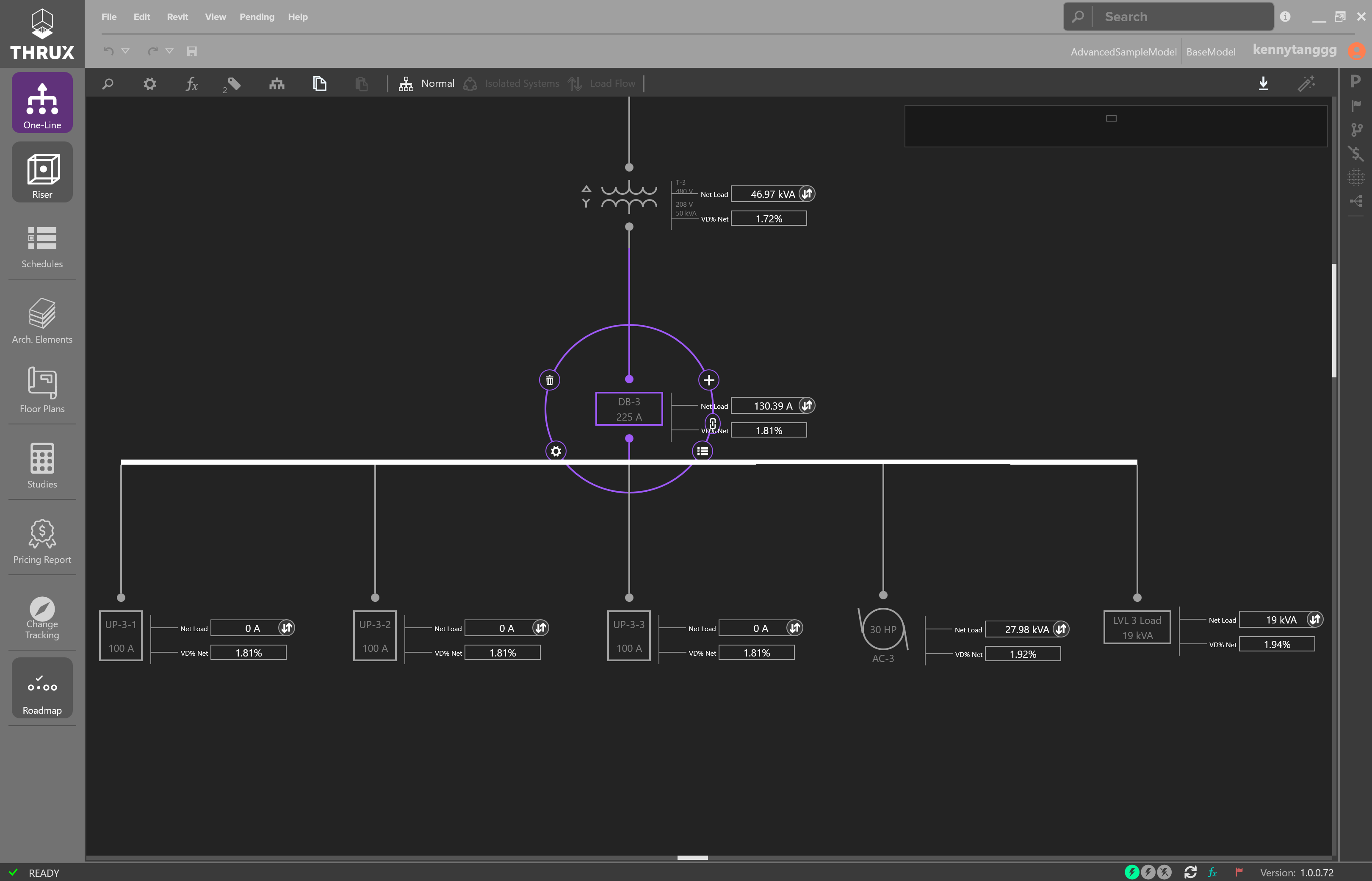
Navigating to the One-Line
Converting to Bus Duct
To convert pipe and wire connections to a bus duct, first delete the existing circuits on the Riser.
Select a circuit and use the delete (Del) key.

Deleting Existing Circuits
Delete all of the existing circuits which will be fed from the Bus Duct.
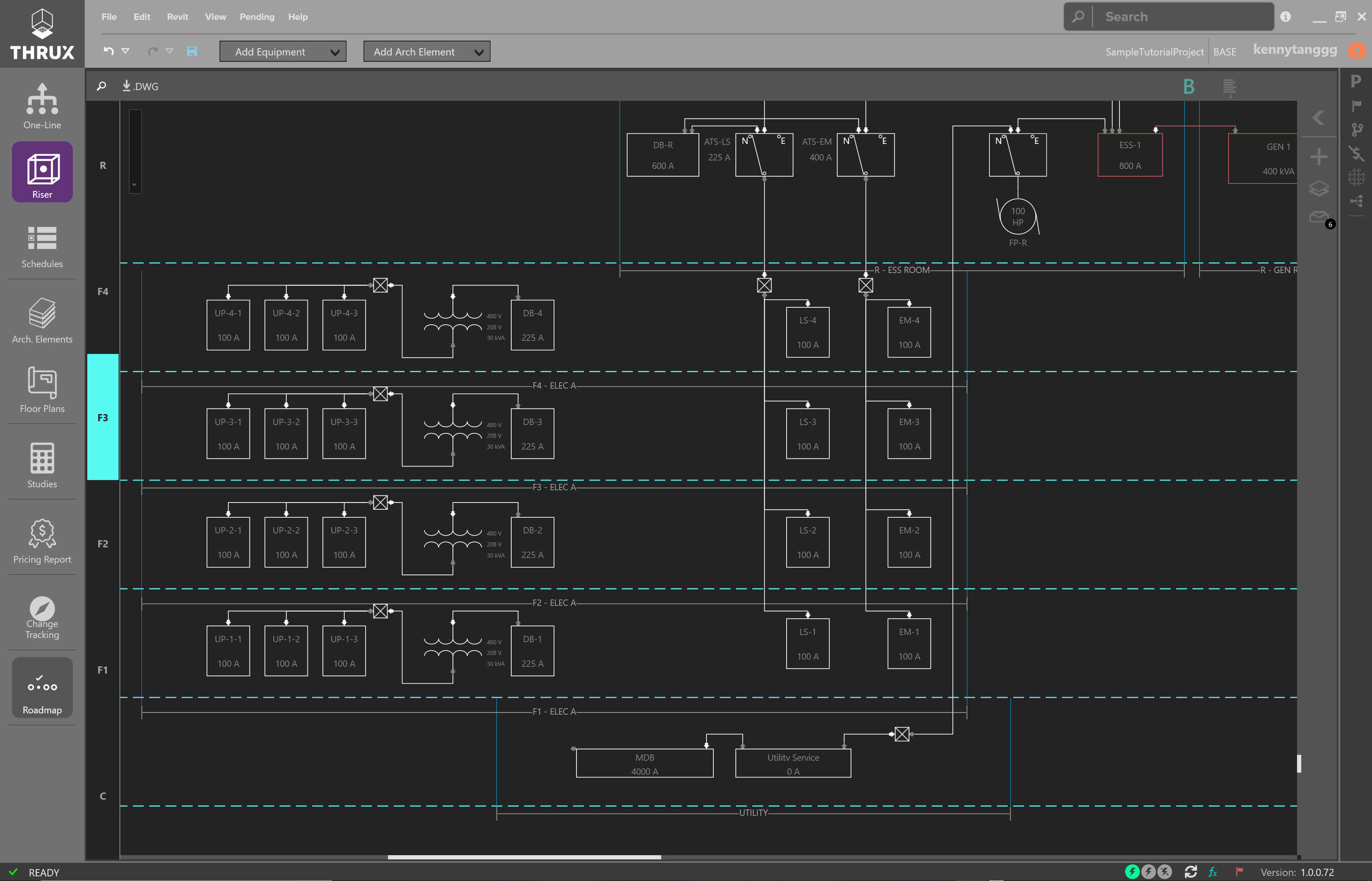
Deleting the Existing Circuits
Create a Bus Duct by dragging and dropping it onto the Riser.
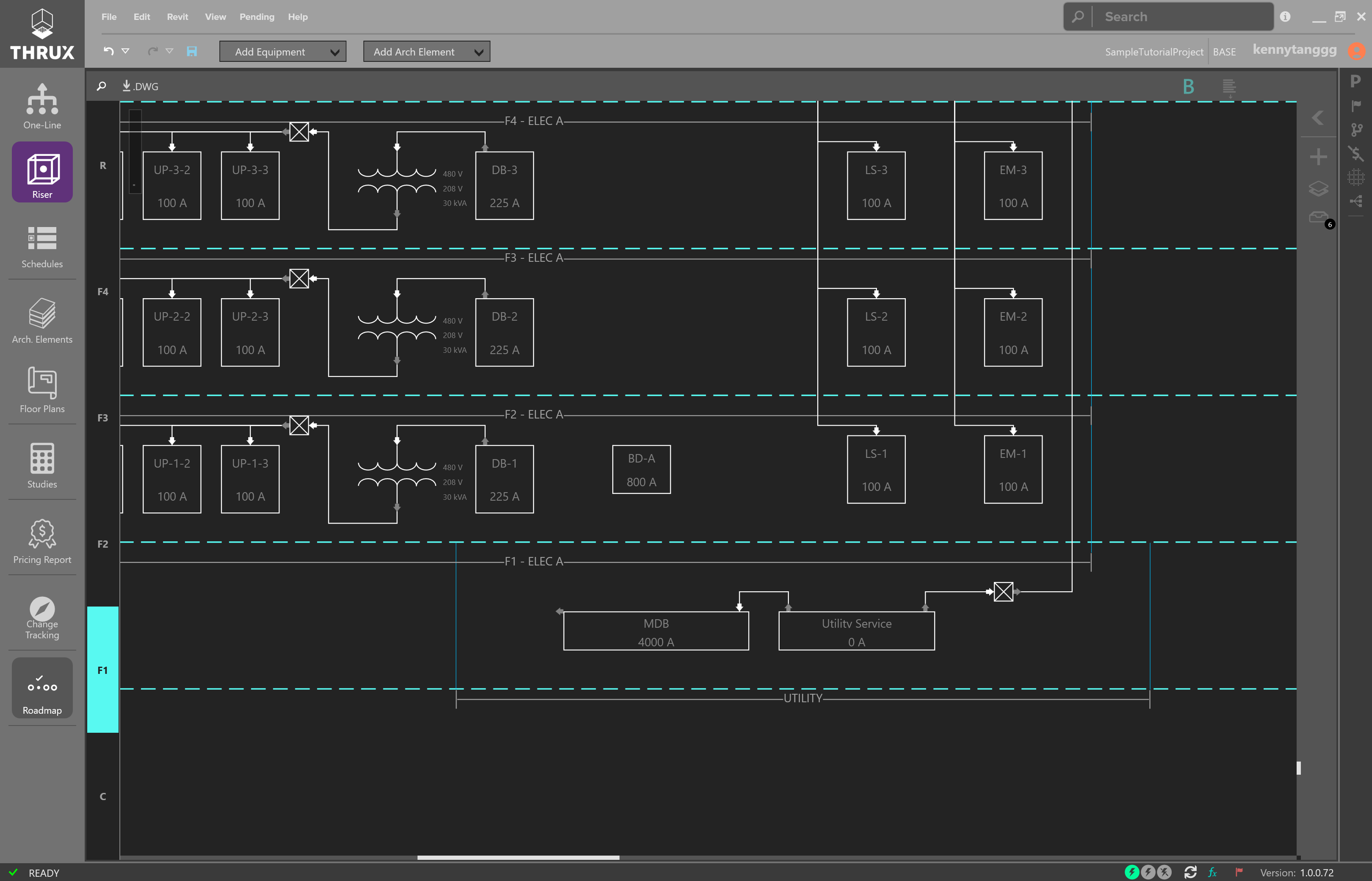
Creating a Bus Duct
Then feed it from MDB by creating an Inbound connection.
Create an Inbound connection by clicking the arrow facing inwards.
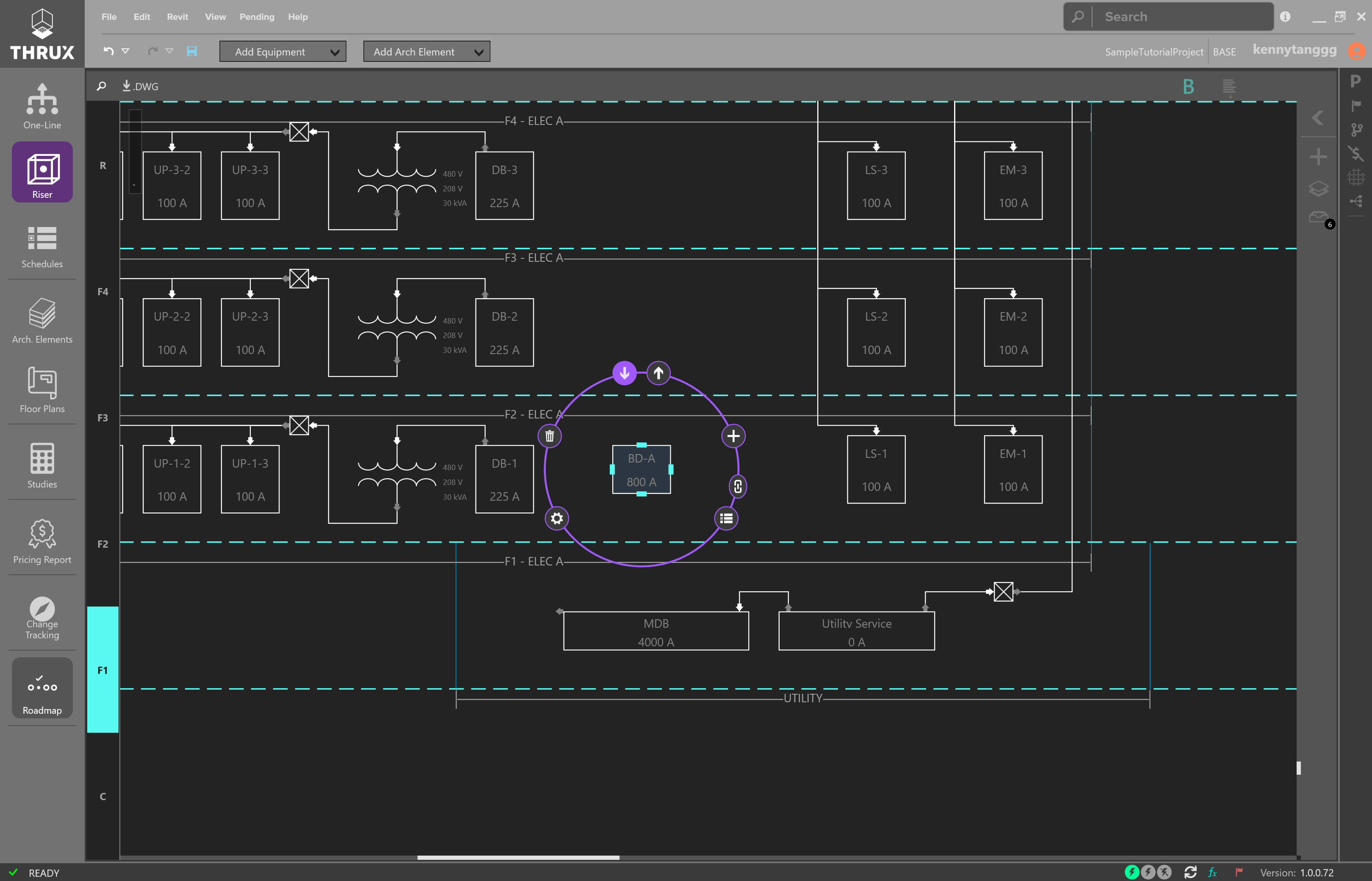
Creating a Bus Duct
Draw the connection to the source.
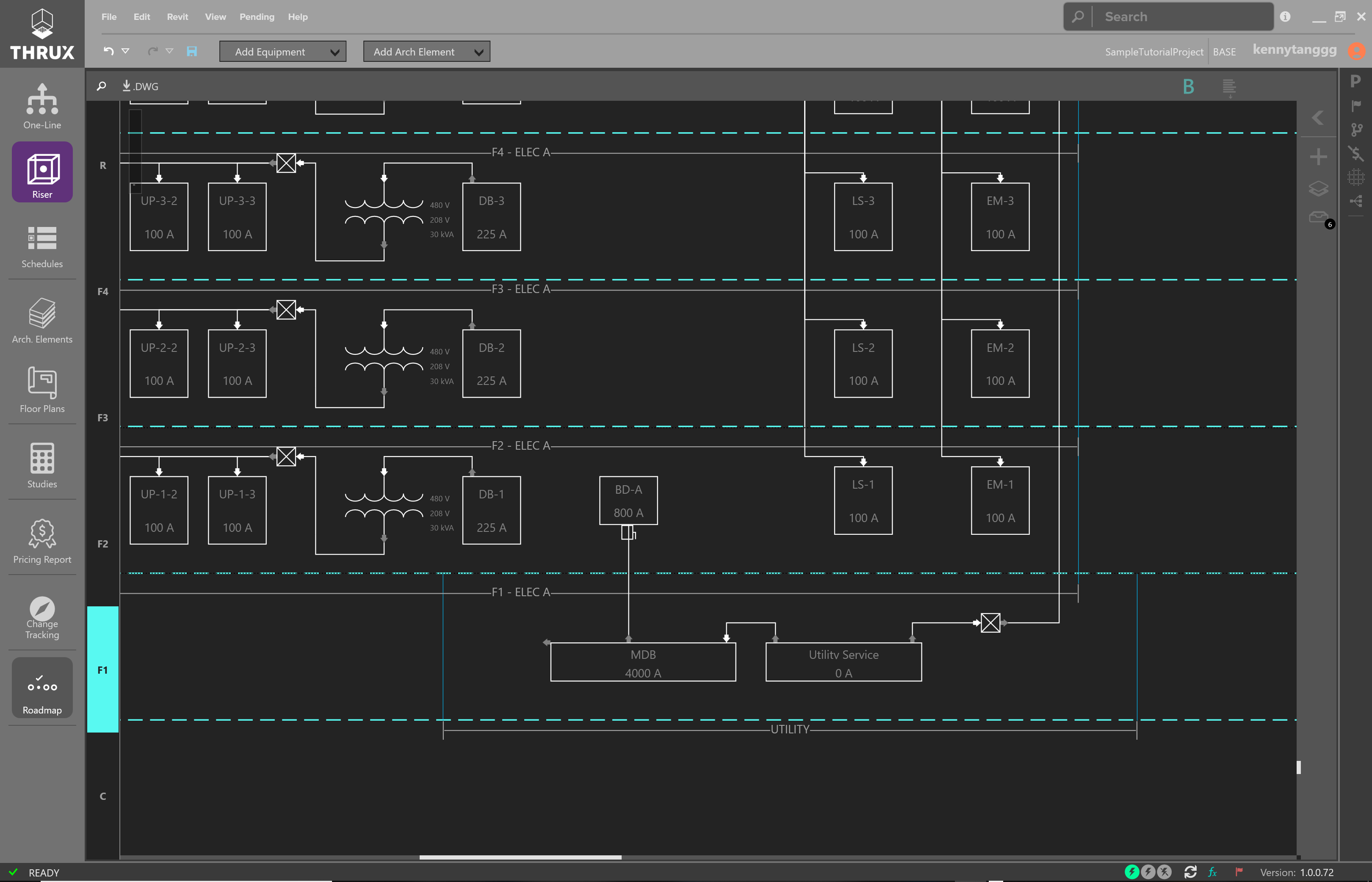
Connecting a Bus Duct to a Source
Select your Bus Duct, resize it, and use the Outbound arrow to draw connections to your loads.

Connecting to Existing Equipment
Draw the remaining electrical connections.
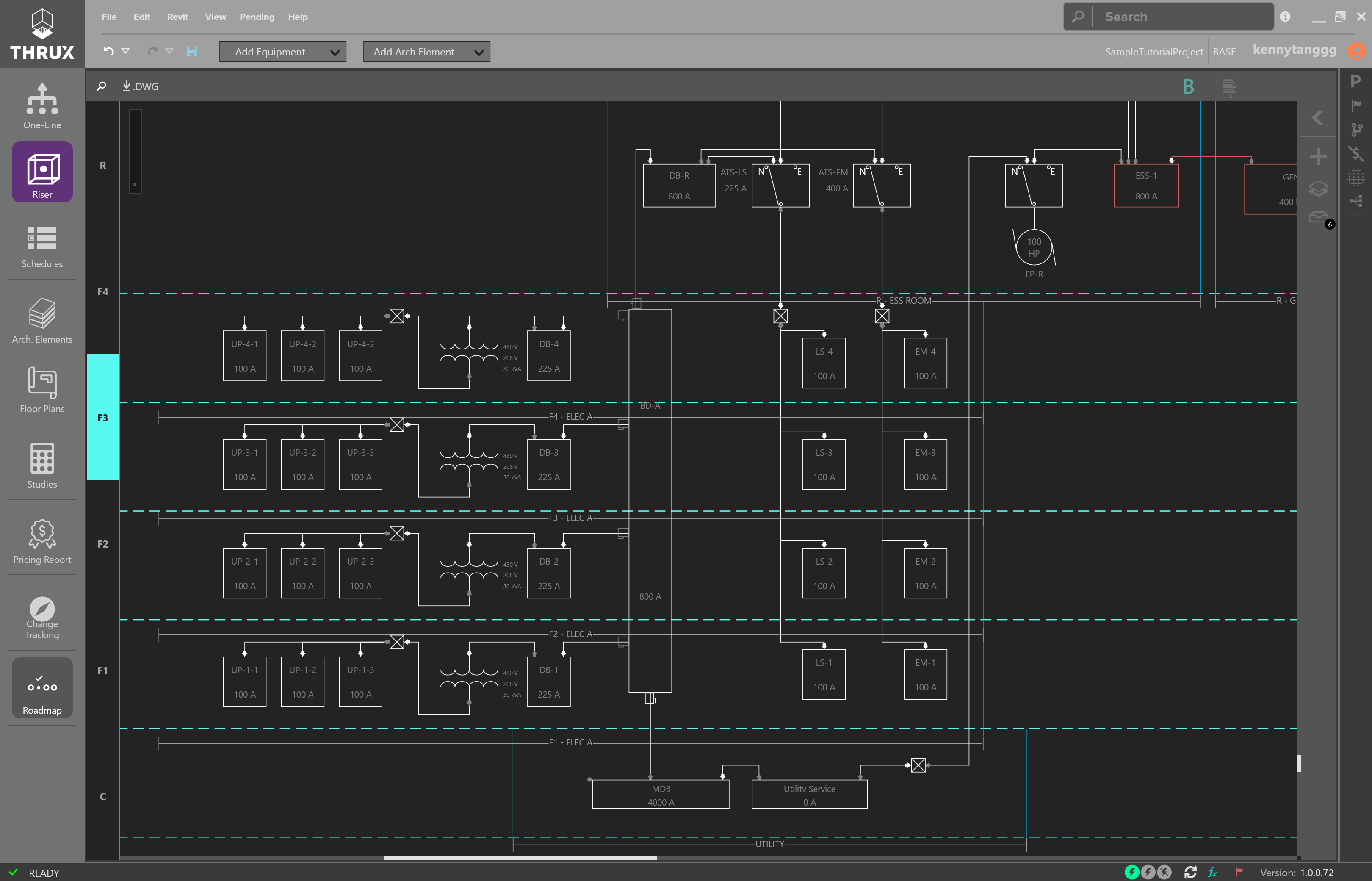
Connecting to Existing Equipment